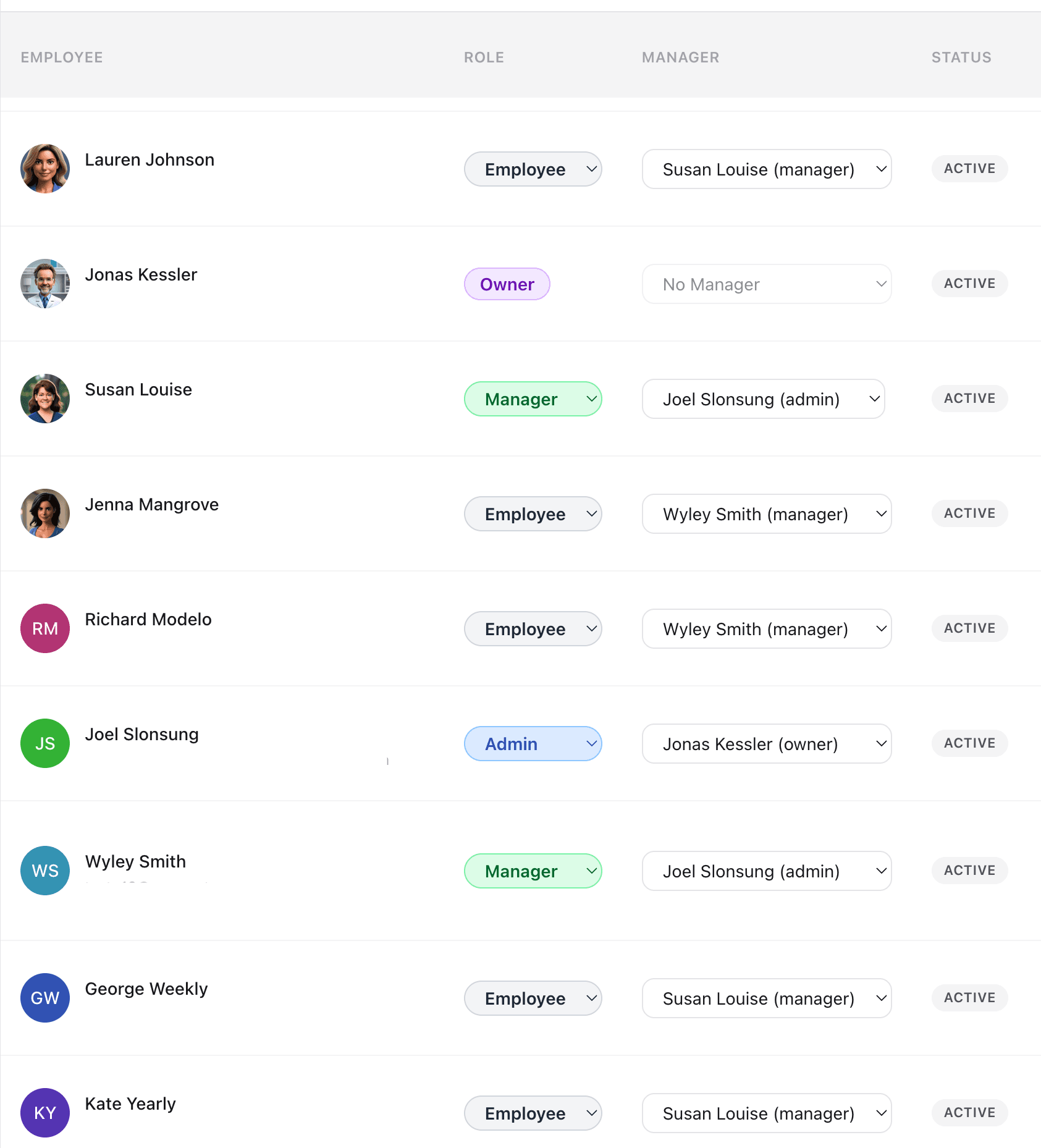
Why teams love Team Management
Four Role Levels
Owner, admin, manager, and employee — each with different permissions. Managers are scoped to their direct reports only.
Manager Delegation
Managers can approve time entries, PTO requests, and shift swaps for their direct reports without bottlenecking admins.
Employee Directory
Track employee contact details, hourly rates, employee IDs, work site assignments, and break compliance state from one page.
Work Site Assignments
Assign employees to work sites with GPS geofencing. Employees can only clock in when they are at their assigned location.
How it works
CrewPunch gives you four role levels to organize your workforce: owner, admin, manager, and employee. Assign managers to oversee specific employees — they can approve time entries, PTO requests, and shift swaps for their direct reports without seeing company-wide data. Assign employees to work sites and track contact details, hourly rates, and employee IDs all from the Employee Directory.
Frequently asked questions
What are the four role levels?
Owner has full access to everything including billing and company settings. Admin has full access except billing. Manager can view and approve time entries, PTO, and shift swaps for their direct reports only. Employee can clock in/out, view their own schedule, and submit requests.
How do I assign a manager to employees?
On the Employee Directory page, click an employee to open their detail modal. Set their role to Manager and assign direct reports. Managers will only see data for the employees assigned to them.
Can managers access company settings or billing?
No. Managers can only view their direct reports' time entries, schedules, and requests. They cannot access company settings, billing, or data for employees outside their team.
How do work site assignments work?
Admins create work sites with GPS coordinates and a geofence radius in Settings. Employees are then assigned to work sites from the Employee Directory. When GPS geofencing is enabled, employees can only clock in when they are within the geofence of their assigned work site.
How do I invite new employees?
Go to the Employee Directory and click "Invite Employee." Enter their email address and they will receive an invitation to join your company. If you need to invite a lot of people at once — for example, during initial onboarding — you can upload a CSV or Excel spreadsheet with an "email" column and an optional "role" column. Employees can also join by entering your company code on the sign-up page.
Related features
Explore more ways CrewPunch helps your team.
Shift Scheduling
Create and publish employee schedules in minutes. Build a master schedule from reusable shift templates, assign recurring shifts, and manage swap requests — all in one place.
Time Off Tracking
Manage PTO requests, track vacation balances, and handle approvals in one place. Employees request time off from their phone, managers approve instantly.
One-Tap Time Clock
Simple employee time clock app that works on any device. One-tap clock in/out with GPS verification. No app downloads required.
Ready to try Team Management?
The easiest way to track hours for your hourly team. Try it free for 14 days.
Start Your Free Trial14-day free trial • No credit card required • Cancel anytime