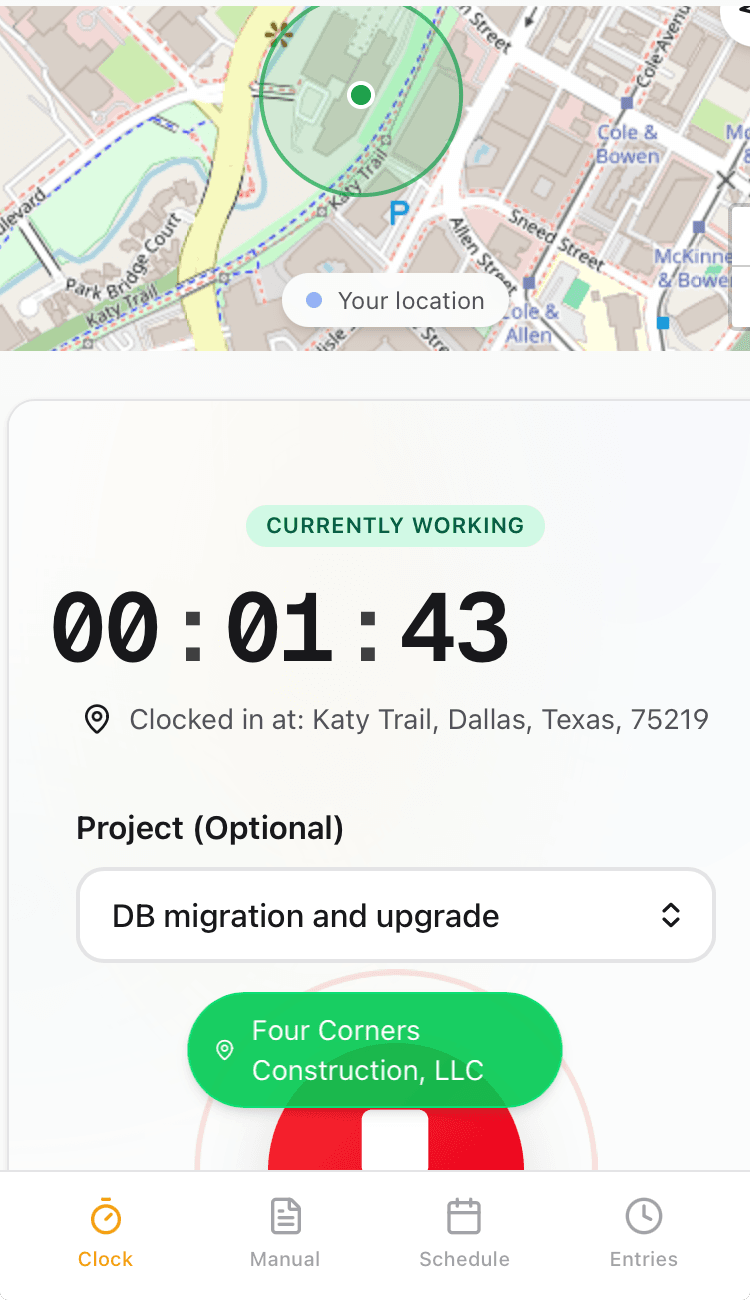
Clocked in within the geofence
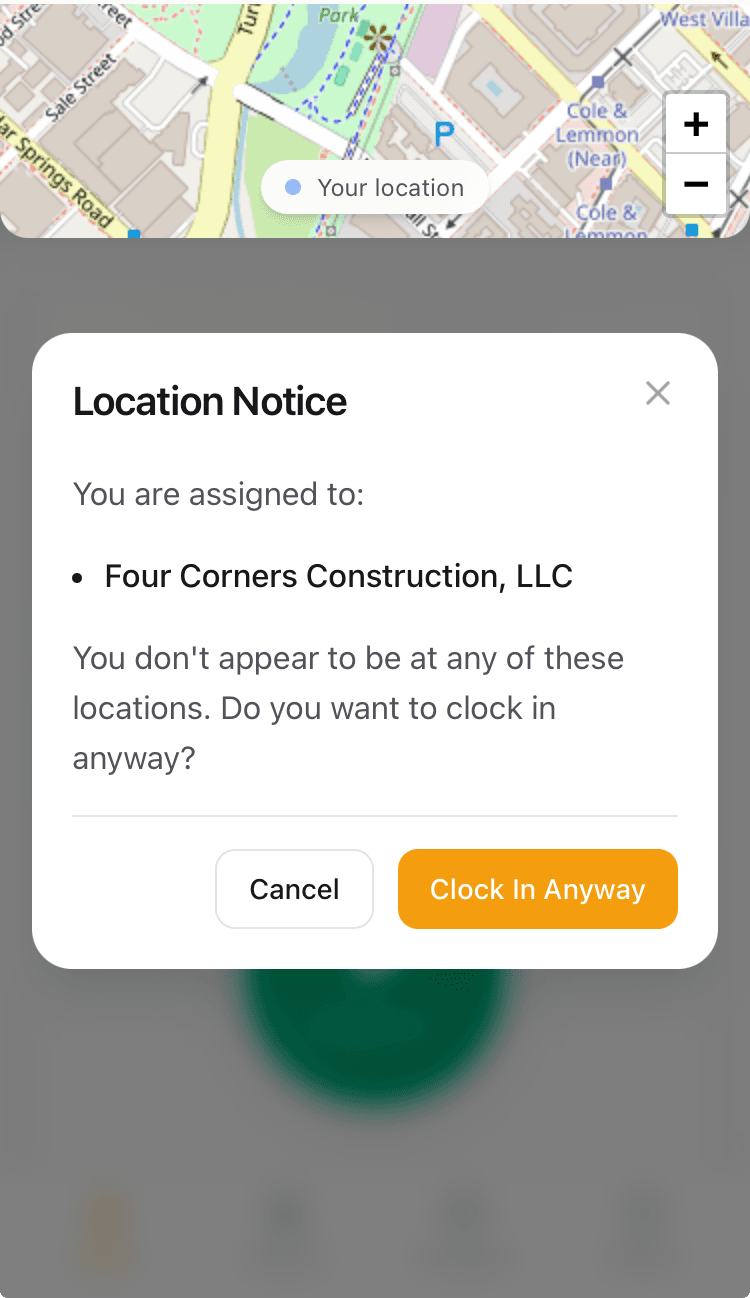
Warning when outside geofence
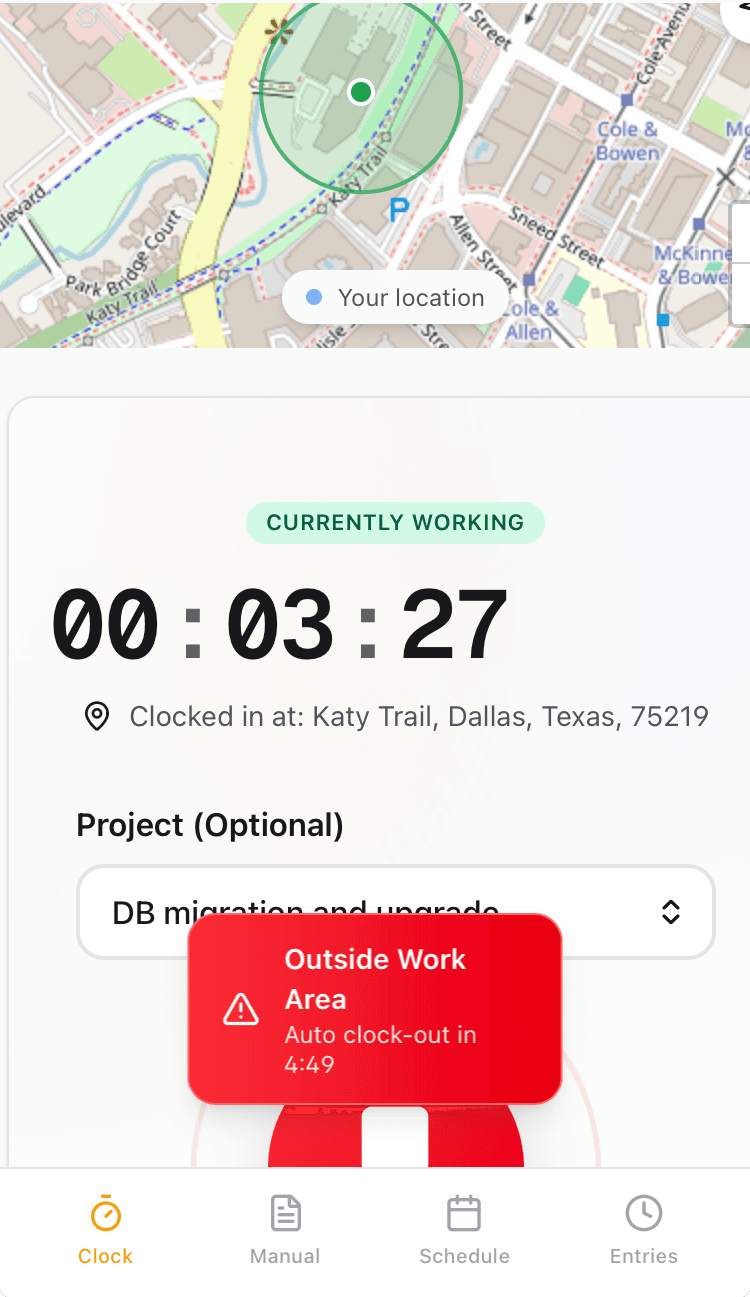
Auto clock-out countdown
Why teams love GPS Geofencing
Virtual Boundaries
Place work sites on a map and set a radius from 50 to 5,000 meters. CrewPunch checks GPS coordinates at clock-in and blocks punches outside all geofenced sites.
Auto Clock-Out
On the Business plan, employees are automatically clocked out when they leave the geofence. A configurable grace period (1–60 minutes) prevents false triggers.
Multi-Site Support
Create up to 5 work sites on the Growth plan or unlimited sites on Business. Each punch records which site the employee clocked in from.
Flexible Enforcement
Choose "Any Company Site" mode to allow clock-ins at any location, or "Assigned Sites Only" to restrict employees to their scheduled work site. Out-of-place punches flag a notification to admins.
How it works
Draw geofences around your work sites and CrewPunch automatically verifies that employees are on location when they punch in. Set a radius from 50 to 5,000 meters around each site, and choose whether employees must be at their assigned site or any company site. If an employee is not at any geofenced site, the clock-in is blocked. If they are at a company site but not their assigned site, they see a warning with the option to clock in anyway. On the Business plan, employees are automatically clocked out if they leave the geofence — with a configurable grace period so brief trips to the parking lot don't trigger a false clock-out.
Add your work sites
From the admin dashboard, search for an address or drop a pin on the map. Set a name and adjust the geofence radius with a slider — anywhere from 50 to 5,000 meters.
Assign employees to sites
Optionally assign employees to specific sites. In "Assigned Sites Only" mode, they can only clock in at their assigned location. In "Any Site" mode, all sites are available but off-site punches notify admins.
Employees clock in on location
When an employee taps Clock In, CrewPunch checks their GPS against your geofences. If they're inside the boundary, the punch goes through and records the site name and address. If they're outside all geofences, the punch is blocked. If they're at a company site but not their assigned site, they see a warning with the option to clock in anyway.
Auto clock-out keeps records clean
On the Business plan, if an employee leaves the geofence while clocked in, a countdown timer appears. After the grace period expires, they're automatically clocked out — no forgotten punches.
Built for every workplace
See how teams across industries use GPS Geofencing.
Construction
Set a geofence around each job site. Crews prove they were on location when they clocked in — essential for certified payroll and prevailing wage jobs.
Field Service & Cleaning
Technicians and cleaners visit multiple client sites daily. Geofences confirm they arrived at each location, giving clients and managers proof of service.
Property Management
Maintenance staff rotate between buildings. Assign each employee to their scheduled property and get notified if someone clocks in at the wrong site.
Healthcare & Home Care
Caregivers clock in at patient homes. GPS-verified punches satisfy billing requirements and give families confidence that shifts were completed on-site.
Frequently asked questions
How accurate is the geofence?
Geofence accuracy depends on the employee's device GPS. Most modern smartphones are accurate to within 5–15 meters outdoors. You can set the geofence radius from 50 to 5,000 meters to account for GPS drift.
What happens if an employee tries to clock in outside the geofence?
If the employee is not within any company work site, the clock-in is blocked. If they are at a company site but not their assigned site (in "Assigned Sites Only" mode), they see a warning with the option to "Clock In Anyway" — and the admin is notified. In "Any Company Site" mode, they can clock in at any active site.
Is auto clock-out available on all plans?
Auto clock-out is available on the Business plan ($79/mo). Growth plan users get geofence validation on clock-in but not automatic clock-out. The Starter plan does not include geofencing.
How does the grace period work?
When an employee leaves the geofence, a countdown timer starts (configurable from 1 to 60 minutes, default 5 minutes). If they return to the geofence before the timer expires, nothing happens. If the timer runs out, they're automatically clocked out.
Can I require employees to be at a specific site?
Yes. In "Assigned Sites Only" mode, employees can only clock in at work sites assigned to them via the schedule or direct assignment. In "Any Company Site" mode, they can clock in at any active work site, but off-site punches trigger a notification to admins.
How many work sites can I set up?
The Growth plan supports up to 5 work sites. The Business plan supports unlimited work sites. You can add, edit, or deactivate sites at any time from the admin dashboard.
Related features
Explore more ways CrewPunch helps your team.
One-Tap Time Clock
Simple employee time clock app that works on any device. One-tap clock in/out with GPS verification. No app downloads required.
Team Management
Four role levels — owner, admin, manager, and employee. Assign managers to oversee their direct reports. Work site assignments keep teams organized.
Payroll Reports
Two powerful report tools: Payroll Reports with automatic overtime and pay calculations, and Activity Reports with detail/summary views, custom date ranges, and employee or project filters. Export as CSV or Excel.
Ready to try GPS Geofencing?
The easiest way to track hours for your hourly team. Try it free for 14 days.
Start Your Free Trial14-day free trial • No credit card required • Cancel anytime