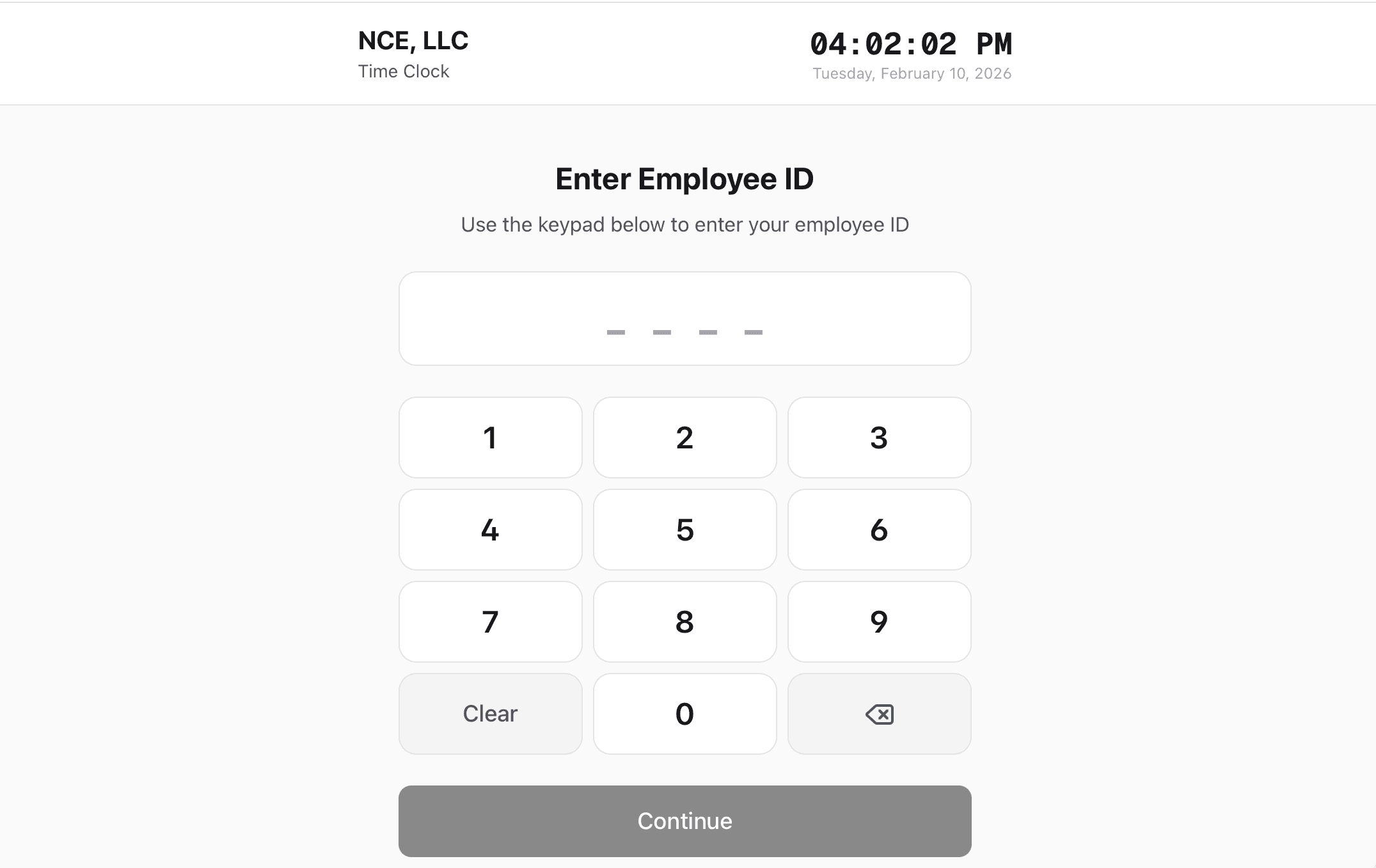
Why teams love Kiosk Mode
PIN-Based Login
Each employee gets a unique numeric ID and optional PIN code for secure, quick clock-ins. No passwords to remember or accounts to manage.
Shared Device Friendly
Run kiosk mode on a single tablet or computer. Multiple employees use the same device — the screen resets automatically after each punch.
Clean, Focused Interface
Kiosk mode shows only the time clock — no navigation menus, no distractions. A large numeric keypad makes it easy to use even with gloves or in a hurry.
Real-Time Clock Display
A live clock shows the current time and date in your company's timezone, so employees always know exactly when they're punching in or out.
How it works
CrewPunch's kiosk mode transforms any tablet or computer into a shared time clock for your entire team. Mount a tablet at the entrance, and employees clock in and out using their personal PIN code. The interface resets automatically after each punch, so the next employee can step up immediately. Perfect for restaurants, retail stores, warehouses, and any workplace where employees share a device.
Enable kiosk mode in settings
Turn on kiosk mode from your admin dashboard and choose whether to require PIN codes for extra security.
Open the kiosk URL on a shared device
Navigate to your unique company kiosk URL on any tablet, computer, or phone. No app download needed — it runs right in the browser.
Employees enter their ID and punch
Each employee types their numeric ID (and PIN if required), then taps Clock In or Clock Out. The screen resets in 5 seconds for the next person.
Built for every workplace
See how teams across industries use Kiosk Mode.
Restaurants & Hospitality
Mount a tablet by the kitchen door. Staff clock in at the start of each shift without needing their own phone or a manager's help.
Retail Stores
Place a kiosk in the break room or back office. Cashiers and stock team clock in before hitting the floor — quick, simple, no fuss.
Warehouses & Manufacturing
Set up a rugged tablet at the warehouse entrance. Workers punch in with the large numeric keypad — easy even with gloves on.
Offices & Coworking Spaces
A shared lobby tablet lets hourly staff and contractors clock in on arrival. No accounts to set up — just an employee ID.
Frequently asked questions
What devices can I use for kiosk mode?
Any device with a web browser — iPads, Android tablets, Chromebooks, laptops, or desktop computers. No app download is required. We recommend a tablet mounted near the entrance for the best experience.
Is the PIN code required?
PIN codes are optional. You can enable or disable PIN requirements from your admin settings. When enabled, employees must enter both their employee ID and their personal PIN to clock in or out.
Can multiple employees use the same device?
Yes — that's exactly what kiosk mode is designed for. After each clock in or clock out, the screen automatically resets after 5 seconds so the next employee can step up. There's no need to log out or switch accounts.
How do I set up kiosk mode?
Enable kiosk mode in your company settings, then open your company's unique kiosk URL on a shared tablet or computer. That's it — employees can start clocking in immediately using their employee ID.
Does kiosk mode work with GPS tracking?
Kiosk mode is designed for fixed-location use, so GPS verification is not applied to kiosk punches. If you need location tracking for mobile employees, use CrewPunch's standard time clock with GPS geofencing instead.
Can employees see their hours from the kiosk?
The kiosk shows whether an employee is currently clocked in and their clock-in time. For full timesheet access, employees can log in to their personal CrewPunch account from any device.
Related features
Explore more ways CrewPunch helps your team.
One-Tap Time Clock
Simple employee time clock app that works on any device. One-tap clock in/out with GPS verification. No app downloads required.
GPS Geofencing
Set up geofences around work sites and ensure employees can only clock in when on location. GPS tracking for construction, field service, and distributed teams.
Team Management
Four role levels — owner, admin, manager, and employee. Assign managers to oversee their direct reports. Work site assignments keep teams organized.
Ready to try Kiosk Mode?
The easiest way to track hours for your hourly team. Try it free for 14 days.
Start Your Free Trial14-day free trial • No credit card required • Cancel anytime